AliExpress Trend Tab: Free Product Phase Check (2026)
How to Use the Trend Tab on AliExpress — Product Momentum and Sales History
Quick answer: Click the Trend tab in the free AliShopping Tools Chrome extension on any AliExpress product page to see whether the product is Emerging, Growing, Peak, or Declining — enter in the Emerging or Growing phase with a momentum score above 60 for the best risk-to-reward window.
Order count alone lies. A product with 50,000 orders and declining weekly velocity is a worse bet than one with 3,000 orders and climbing momentum — yet most sellers still sort by total orders and wonder why they keep landing on dying trends.
The Trend tab in the free AliShopping Tools Chrome extension fixes that. It turns raw order data into a phase classification, a momentum score, and a visual curve so you can tell "winning tomorrow" from "peaked last quarter" at a glance.
This tutorial walks through how to open it on any AliExpress product page and how to actually read the signals.
Trend phase reference
| Phase | Momentum range | Typical order curve | Action |
|---|---|---|---|
| Emerging | 50-85, rising | Low volume, steep climb | Enter early |
| Growing | 65-95 | Rising volume, healthy slope | Enter, scale steadily |
| Peak | 40-70, flat | High volume, flat curve | Test small, watch for decline |
| Declining | 0-40, falling | Any volume, negative slope | Skip unless cost advantage |
What the Trend tab does
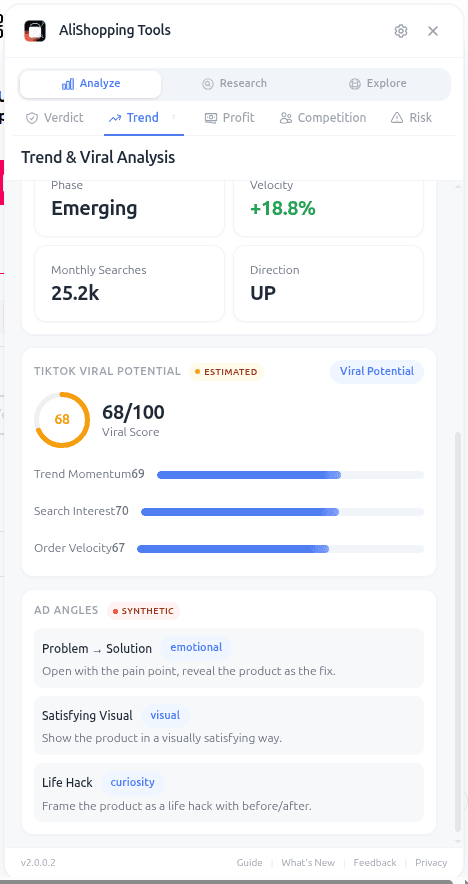
The Trend tab analyzes the order velocity curve for a product and classifies it into one of four phases: Emerging, Growing, Peak, or Declining. It also assigns a momentum score from 0 to 100 that tells you how fast orders are accelerating (or decelerating) right now.
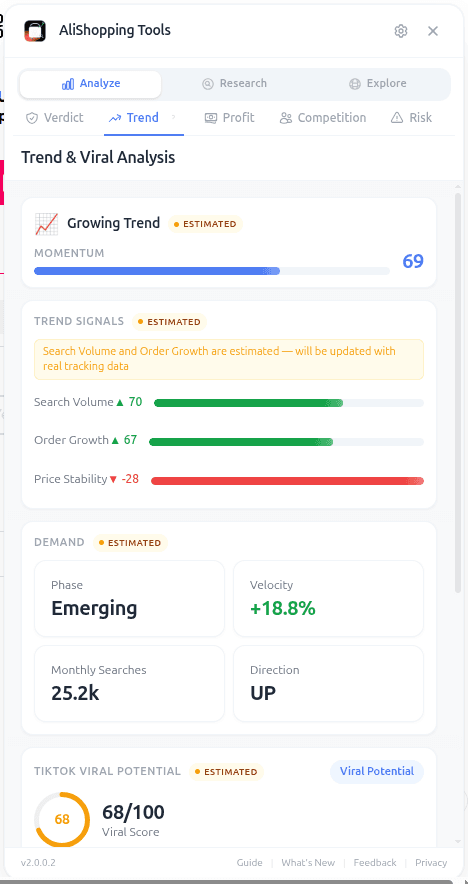
Under the hood, the extension pulls public order data from the AliExpress product page and sends a request through the AliShopping Tools backend, which fits the time series against a momentum model. The result is the same methodology for every product, so you can compare apples to apples across categories.
The tab exists because total orders are a lagging indicator. A lamp that went viral in 2024 and accumulated 80,000 orders looks impressive until you realize weekly sales are down to 20 a week. Meanwhile a magnetic phone mount with 2,500 orders and 78% momentum is quietly pulling in 400 orders a week on an upward curve. The Trend tab makes that difference visible.
How to access it
Step 1 — Install the extension. Get AliShopping Tools from the Chrome Web Store. Extension ID agiaehdeifaihlndhnhcmopjpjijnfap. It is free, no sign-up required.
Step 2 — Open any AliExpress product URL. The extension auto-injects its sidebar panel on *.aliexpress.com/item/* pages within a second of load.
Step 3 — Click the Trend tab. It is the second tab in the panel, right after Verdict. The phase label and momentum score render immediately; the full curve appears once the backend request completes (usually under two seconds).
What each signal means
- Phase label: one of Emerging, Growing, Peak, Declining.
- Emerging — low order base but steep positive slope. High upside, higher uncertainty.
- Growing — healthy order volume and positive slope. The best risk/reward window for most sellers.
- Peak — high orders, flat or slightly negative slope. Demand is saturated; margins compressed.
- Declining — negative slope. Orders shrinking. Avoid unless you have a specific seasonal angle.
- Momentum score (0-100): rate of change in order velocity. Above 60 is strong, 40-60 is neutral, below 40 is weak or reversing.
- Velocity curve: the visual history. Look for consistent upward movement, not spikes. A single-week spike followed by a flat line usually means a viral TikTok video that did not translate into sustained demand.
- Order count + review count: baseline size. Useful to weight the momentum signal — a 90 momentum on a product with 200 orders is noisier than the same 90 on a product with 5,000 orders.
Real-world workflow
You are deciding between two kitchen gadgets. Both are in the same price range. Both have 4.6 stars.
Product A — Trend tab shows Peak, momentum 38, 42,000 orders, flat curve for the last 8 weeks. This is a product that had its moment. Sellers who jumped in six months ago are probably still selling, but new entrants will fight for scraps on an already-saturated market.
Product B — Trend tab shows Growing, momentum 74, 3,800 orders, curve sloping steadily upward for 10 weeks. Smaller order base, but the math is working in your favor: demand is still climbing, the category is not yet flooded, and you have time to build an ad account and creative before the peak hits.
You pick Product B. Six weeks later it crosses 9,000 orders and you are on the front of the wave. That is the trade the Trend tab is built for.
Cross-check: open the Competition tab to confirm saturation is still low on Product B before you commit.
Common mistakes
- Chasing Peak products because "everyone is buying." Everyone selling, too. Peak is the worst entry point for a new seller.
- Ignoring Declining products for seasonal lines. A Christmas item in February will always look Declining. Think about the calendar, not just the curve.
- Trusting momentum on tiny order bases. A 90 momentum on a product with 60 total orders is noise. Wait for at least 500 orders before treating momentum as signal.
- Confusing the curve with a stock chart. This is weekly order velocity, not daily. A flat-ish line for 2-3 weeks is normal; do not overreact to short gaps.
FAQ
How often is the trend data updated? The extension pulls fresh data on every product page load, so opening the tab gives you the latest snapshot. Historical curves include several months of weekly data points where available.
Why does momentum sometimes disagree with phase? Phase is a classification over the whole curve shape. Momentum is a rate over the most recent window. A product can be in Growing phase with momentum 52 (still rising, but cooling). That is not a bug — it is the two numbers telling you momentum is easing even though the phase has not flipped yet.
What counts as "Emerging" versus "Growing"? Emerging = positive slope with a small order base (roughly under 1,000 orders). Growing = positive slope with a larger base. The distinction matters because Emerging products carry more upside but also more uncertainty.
Can I use the Trend tab for Shopify stores too? No. The Trend tab is specific to AliExpress product pages. For Shopify stores, the extension shows a different set of signals focused on store-level metrics.
Does the Trend tab work on mobile? The extension is desktop Chrome only (MV3). For mobile research, use the shared signals shown in the extension popup when you sync from a desktop session.
Pair it with the other tabs
Trend tells you when. The Verdict tab tells you whether to dig deeper at all, the Profit calculator tells you whether the margin survives your ad costs, and the Competition tab tells you whether there is room left for another seller.
Install AliShopping Tools — Free on Chrome Web Store
Stop sorting by total orders. Start sorting by where the curve is going.
Ready to find winning products?
Try AliShopping Tools — 15 free AI tools for product research.
Quick answers
Frequently Asked Questions
1How often is the trend data updated?
The extension pulls fresh data on every product page load, so opening the tab gives you the latest snapshot.
Historical curves include several months of weekly data points where available.
2Why does momentum sometimes disagree with phase?
Phase is a classification over the whole curve shape.
Momentum is a rate over the most recent window.
A product can be in Growing phase with momentum 52 (still rising, but cooling).
That is not a bug — it is the two numbers telling you momentum is easing even though the phase has not flipped yet.
3What counts as "Emerging" versus "Growing"?
Emerging = positive slope with a small order base (roughly under 1,000 orders).
Growing = positive slope with a larger base.
The distinction matters because Emerging products carry more upside but also more uncertainty.
4Can I use the Trend tab for Shopify stores too?
No. The Trend tab is specific to AliExpress product pages. For Shopify stores, the extension shows a different set of signals focused on store-level metrics.
5Does the Trend tab work on mobile?
The extension is desktop Chrome only (MV3). For mobile research, use the shared signals shown in the extension popup when you sync from a desktop session.
6Which AliExpress product lifecycle phase is most profitable for new dropshipping stores?
The "Growing" phase is generally the more attractive entry point for new dropshipping stores — demand is already validated but the market usually isn't as crowded as it gets in the Peak phase.
The Trend tab surfaces this phase classification directly so you can favor products still on the way up rather than ones that have already peaked.
7Why does a high total order count not guarantee a product is trending on AliExpress?
A high total order count reflects a product's cumulative history, not necessarily what's happening right now — a product with a huge lifetime order count can still be well past its peak, with current demand actually declining.
The Trend tab looks at the recent sales curve and momentum rather than the lifetime total, which is why it can flag a "popular" product as Declining.
8Does the AliShopping Tools Chrome extension collect personal user data?
No, the AliShopping Tools extension processes all trend data locally within your browser and does not collect or store personal user data.
Because the tool runs entirely client-side, your browsing history and account credentials remain private without the need for a cloud account.
This architecture ensures that the product lifecycle analysis—such as Emerging or Growing classifications—is generated instantly on your device.
You can safely research AliExpress products without worrying about third-party data tracking or privacy breaches associated with server-side extensions.
9How does the momentum score influence the classification of a product as Peak or Declining?
The momentum score reflects the recent rate of change in orders, so a score that's clearly falling over time is what typically shifts a product from Peak toward Declining, while a score holding steady near the top of the range keeps it classified as Peak.
The Trend tab uses this recent-velocity read specifically to help distinguish a temporary dip from a real, sustained falloff.
10What are the risks of sourcing AliExpress products currently in the Declining phase?
Sourcing products in the Declining phase poses a high risk of low conversion rates and price wars, as demand is shrinking while supply often remains high.
These products typically exhibit a downward-sloping sales curve and negative momentum over the last 30 days.
Entering this market usually forces sellers to compete on razor-thin margins to clear inventory.
The AliExpress Trend tab identifies these items so you can avoid capital traps and focus your budget on items with positive growth trajectories.
More from the blog
Find Similar AliExpress Products: Free Tool 2026
Find similar AliExpress products 2026: compare price, supplier trust, and variants in 1 click — free Chrome extension. No signup, no account required.
AliExpress Daily Deals Chrome Extension (Free 2026)
AliExpress daily deals tracker 2026: auto-detect flash sales, coupons, and trending picks filtered by Winning Score. Free Chrome extension, 1-click setup.
AliExpress Verdict Tab: Free AI Buy/Skip Tool (2026)
AliExpress Verdict Tab 2026: AI scores Buy/Skip/Research in 1 click using 30+ signals — free Chrome extension. How to read the score and act on it.