AliExpress Extension Settings: Config Guide 2026
AliShopping Tools Settings — Configure Your AliExpress Chrome Extension
Quick answer: Open any AliExpress page, click the Settings tab in the AliShopping Tools panel, and adjust your minimum Winning Score threshold, margin floor, saturation ceiling, and currency — changes save automatically and flow through all filtered list views like Daily Deals and Niches.
Most users run the extension at defaults, and defaults are tuned to work for typical dropshipping and reseller use cases. But there are workflows where adjusting the thresholds makes a real difference — low-margin high-volume operators want lower margin cutoffs, privacy-sensitive users want local-only mode, and anyone in a non-USD market wants currency switched.
This page is the reference for every setting in the free AliShopping Tools Chrome extension, grouped by section.
Accessing Settings
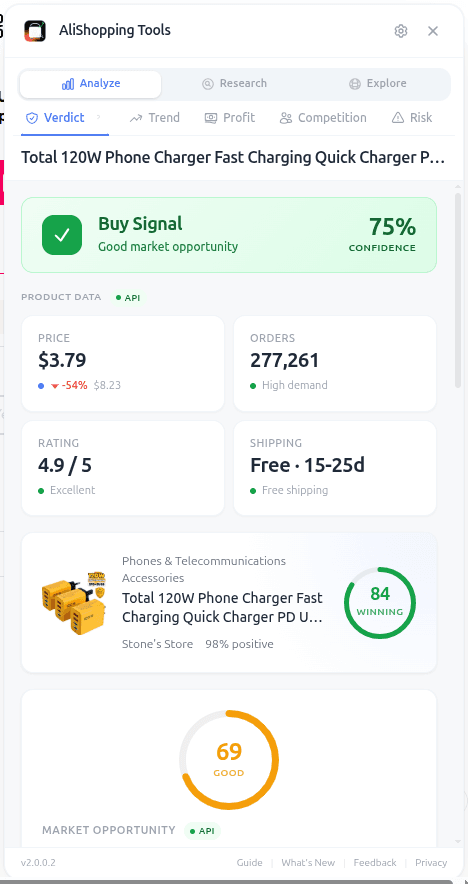
Open any AliExpress page, open the extension panel, click the Settings tab. Changes save automatically — no Save button needed. Reset to defaults is available at the bottom of the tab.
Filter Thresholds
Settings quick reference:
| Setting | Default | Lower value | Higher value |
|---|---|---|---|
| Minimum Winning Score | 70 | 60 (see borderline candidates) | 80 (strongest signals only) |
| Minimum margin estimate | 35 percent | 25 percent (high-volume low-margin) | 50 percent (premium CPMs) |
| Maximum saturation | 60 percent | 45 percent (avoid crowded) | 70 percent (if you have differentiation) |
| Minimum supplier trust | Good | Fair or Poor (see everything) | Excellent (short list) |
Controls what counts as a "pass" in the Daily Deals, Niches, and Discovery tabs.
- Minimum Winning Score — default 70. Lower to 60 if you are in a testing-heavy workflow and want to see more borderline candidates. Raise to 80 if you only want the strongest signals.
- Minimum margin estimate — default 35 percent. Lower to 25 percent for high-volume low-margin operators; raise to 50 percent if you need margin to absorb premium CPMs.
- Maximum saturation — default 60 percent. Lower to 45 percent if you avoid crowded markets; raise to 70 percent if you have a content-differentiation advantage and can compete in saturated niches.
- Minimum supplier trust label — default Good. Options: Poor (accept all), Fair, Good, Excellent. Excellent-only filters aggressively and will return a short list.
These thresholds flow through Daily Deals, Niches, and Discovery. Verdict tab shows the raw score regardless — thresholds only filter the list views.
Notifications
Controls browser notifications and badge alerts.
- Daily Deals alerts — default off. Turn on for a morning notification summarising new qualifying deals.
- Price drop alerts on pinned products — default on. When a product you pinned on the Compare tab drops meaningfully in price or flips trust tier, the extension alerts you.
- Quiet hours — default 10pm to 8am local. No notifications fire in this window. Adjustable to your schedule.
Notifications are browser-level, so Chrome's global notification settings apply on top of these.
Display Preferences
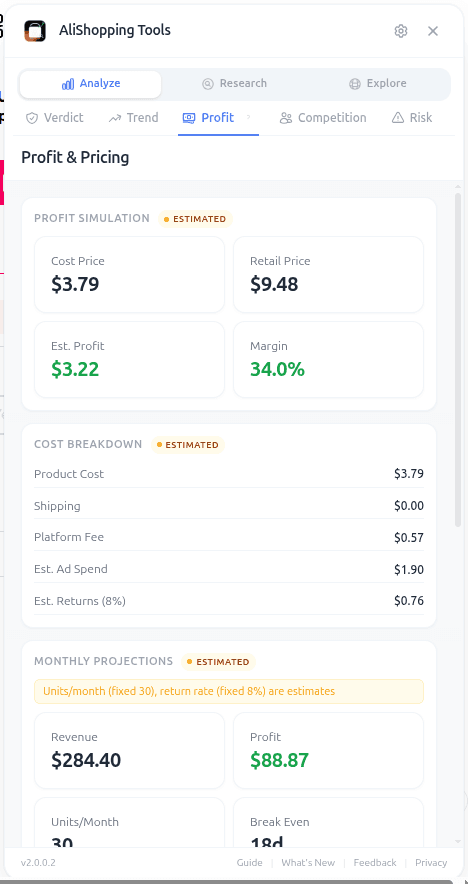
Controls the look and feel of the extension panel.
- Currency — default USD. Options: USD, EUR, GBP, AUD, CAD, JPY, CNY, VND, INR, BRL, plus more. All price and margin displays convert to the selected currency at daily-updated rates.
- Language — default English. Options: English, Vietnamese, Spanish, Portuguese, Chinese Simplified. Interface text only; AliExpress listing text stays in whatever language AliExpress served it in.
- Panel side — default right. Options: right, left. For left-handed users or dual-monitor setups where your secondary monitor is on the right.
- Panel width — default 420px. Adjustable 380px to 520px. Wider is better for reading the Compare tab side-by-side.
- Dark mode — default follow system. Options: follow system, light, dark. Affects panel chrome only; product photos remain in source lighting.
- Compact mode — default off. Tightens row heights across all tabs. Useful for small screens or if you prefer information density over whitespace.
Privacy
Controls data handling.
- Local-only mode — default off. When on, the extension disables all API calls to AliShopping Tools servers. Winning Score, Risk scoring, and Similar tab stop working (they require server-side computation). Trend, Profit, and Compare still work because they compute from data already on the page. Trade-off: full privacy vs feature set.
- Anonymous telemetry — default on. Sends aggregated usage data (which tabs you open, how often, error rates) with no personally identifying information. Disable if you prefer zero outbound data.
- Clear cache on uninstall — default on. When you remove the extension, cached product data is wiped. Leave on unless you have a reason to retain it.
Privacy philosophy: the extension defaults to collecting the minimum needed to improve the product. We do not sell data. See privacy policy for specifics.
Account (optional)
Most of the extension works with no account. A few features require optional sign-in:
- Saved product watchlist — sync pinned products and alerts across devices. Requires a free account.
- Multi-device settings sync — same settings on work laptop and home desktop. Requires a free account.
Create account, sign in, or delete account from this section. Account creation is email-only; no payment required.
Advanced
Power-user settings that most users should leave alone.
- API cache TTL — default 24 hours. How long product data is cached locally before re-fetching. Lower it if you want fresher data more often (at the cost of more API calls); raise it if you research the same products repeatedly.
- Concurrent scans — default 3. How many products the Similar tab and Compare tab will scan in parallel. Higher is faster but may hit AliExpress rate limits; lower is slower but more reliable.
- Debug mode — default off. Enables verbose console logs for support tickets. Turn on only when asked by support.
- Reset all settings — restores defaults across every section. Does not touch pinned products or watchlist; those have their own reset under the Compare and watchlist views.
Common settings scenarios
Quick reference for common configuration goals.
- Faster research, broader candidates: Minimum Winning Score 60, Minimum margin 25 percent, Maximum saturation 70 percent. Accepts more borderline deals for testing.
- High-quality only, fewer candidates: Minimum Winning Score 80, Minimum supplier trust Excellent. Short list, high conviction.
- Non-US operator: Switch currency to local, switch language if preferred.
- Privacy-first: Local-only mode on, telemetry off. Accept reduced feature set.
- Power user multi-device: Create account, enable multi-device settings sync.
FAQ
Do settings sync across devices automatically? Only if you sign in with a free account and enable multi-device sync under Account. Otherwise each browser profile has its own settings.
Will changing thresholds affect the Winning Score itself? No. The Winning Score is computed server-side and is the same for everyone. Thresholds only control which products pass through filtered list views like Daily Deals and Niches.
What happens if I enable Local-only mode? Features that require API calls stop working (Winning Score fetch, Risk tab scoring, Similar tab search, Compare tab cross-listing data). Features computed from the current page continue (basic price display, manual profit calculator input). Most users do not need Local-only mode; enable only if required by your security posture.
Why is the language list limited to 5 options? We support the languages our user base requests most. If you want an additional language, send a request via contact — community translations are welcomed.
Can I back up and restore settings? With a free account, settings sync to your account and restore on re-install. Without an account, settings are local to the browser profile.
Install and configure for your workflow
The extension works great at defaults for most users. Adjust thresholds when your workflow differs materially from the defaults, and leave the rest alone.
Install AliShopping Tools — Free on Chrome Web Store
For the full feature reference, see the tutorials on Verdict, Similar, Compare, and Daily Deals.
Ready to find winning products?
Try AliShopping Tools — 15 free AI tools for product research.
Quick answers
Frequently Asked Questions
1How do I access AliShopping Tools settings?
Click the AliShopping Tools icon in the Chrome toolbar, then click the gear icon at the top right of the extension panel.
Settings open in a dedicated tab with sections for Filters, Notifications, Display, and Privacy.
Most users never need to change defaults, but the options are there for specialised workflows.
2What filter thresholds should I use for dropshipping?
Defaults are tuned for typical dropshipping: winning score 70 or higher, margin 25 percent or higher, saturation 60 or lower, supplier trust 3.5 or higher.
For beginners these are solid starting points.
Experienced operators running high-volume low-margin niches often drop margin to 15 percent; premium-niche operators raise it to 40 percent.
3Can I turn off AliShopping Tools notifications?
Yes.
Open Settings, go to Notifications, and toggle off any alerts you do not want — daily deals and new winning products.
You can also set quiet hours so alerts only fire during your research window.
All notifications are off-by-default for new installs; they only trigger if you opt in.
4Does AliShopping Tools support currencies other than USD?
Yes.
In Settings > Display, change the Currency dropdown to your preferred currency — EUR, GBP, VND, AUD, CAD, and fifteen other currencies are supported as of April 2026.
Profit calculations and price comparisons update automatically.
Source exchange rates refresh daily from a public provider.
5What is local-only mode in the privacy settings?
Local-only mode disables all telemetry and cloud features, running the extension entirely inside your browser with no external calls beyond fetching the AliExpress or Shopify page you are viewing.
Use it if you handle sensitive research data or work in a privacy-restricted environment.
It is off by default; the default mode sends anonymous usage telemetry to improve the tool.
6Can I switch the extension panel to the left side?
Yes.
Settings > Display > Panel Side — choose Left or Right.
Default is Right.
Left is useful on widescreen monitors where AliExpress product photos live on the right side of the viewport.
The setting applies immediately, no reload needed.
7How do I reset AliShopping Tools settings to defaults?
At the bottom of the Settings page click Reset to Defaults.
All thresholds, notifications, display, and privacy options return to factory values.
Your local history (recent products viewed) is kept separately and is not cleared by a settings reset.
The reset is instant and reversible — you can re-customise immediately after.
More from the blog
Koala Inspector Alternative 2026: Top Tools Compared
Best free Koala Inspector alternative 2026: a Chrome extension adding AliExpress price history, AI review analysis & supplier search Koala can't do — $0, no signup.
AliExpress Price Chart 2026: Track Price History on Any Product (Free Chrome Extension)
AliExpress sellers inflate 'original prices' to fake 80%-off discounts. This free Chrome extension shows a 90-day price chart on every product page — so you see the real price history before you buy or source.
AliExpress Find Similar Products — 5 Methods That Actually Work in 2026
Found a great product on AliExpress but want alternatives, a cheaper version, or a better supplier? This guide covers every method to find similar AliExpress products — built-in tools, image search, keyword strategies, and the AStools extension.