
AliExpress Shopify Direct Import Tutorial 2026 Guide
Quick answer: With AliShopping Tools v2.0.0.23, importing an AliExpress product to Shopify takes one click. Open the product on AliExpress, click the Import button in the extension overlay, select your destination store from the multi-store picker, and confirm. Title, description, images, variants, and pricing are transferred automatically — no CSV, no copy-paste. Install AliShopping Tools on the Chrome Web Store →
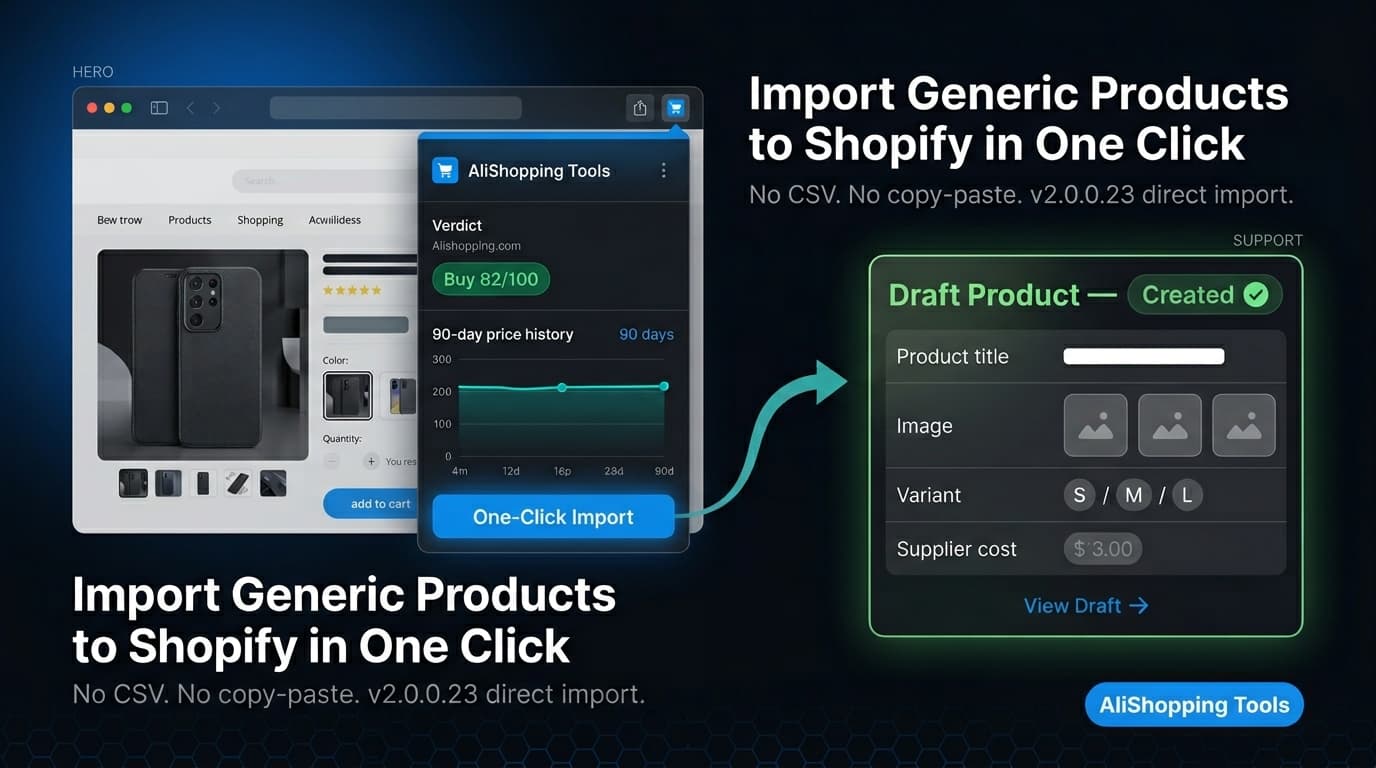
Sourcing products on AliExpress and getting them into Shopify has traditionally involved at least three tools: a research tool, a CSV editor, and a Shopify import app. AliShopping Tools v2.0.0.23 collapses that workflow into a single extension. This tutorial walks through every step of the direct import process, from installation through to editing the product in your Shopify dashboard. If you are starting from scratch, see the AliExpress to Shopify complete setup guide for the full store-to-scale journey.
What Is AliExpress Shopify Direct Import?
AliExpress Shopify Direct Import is a feature in AliShopping Tools v2.0.0.23 that connects your Shopify store to AliExpress product pages via the Shopify API. When you find a product you want to sell, the extension injects an Import button directly on the AliExpress product page. One click sends the product data — title, description, images, variants, and pricing — to your Shopify store without leaving AliExpress.
This is different from a CSV export workflow. With CSV, you download a file, format it to Shopify's template requirements, navigate to the Shopify admin, and upload the file. Direct import skips all of that. The extension talks to Shopify's API directly, so your product appears in your Shopify draft products list within seconds.
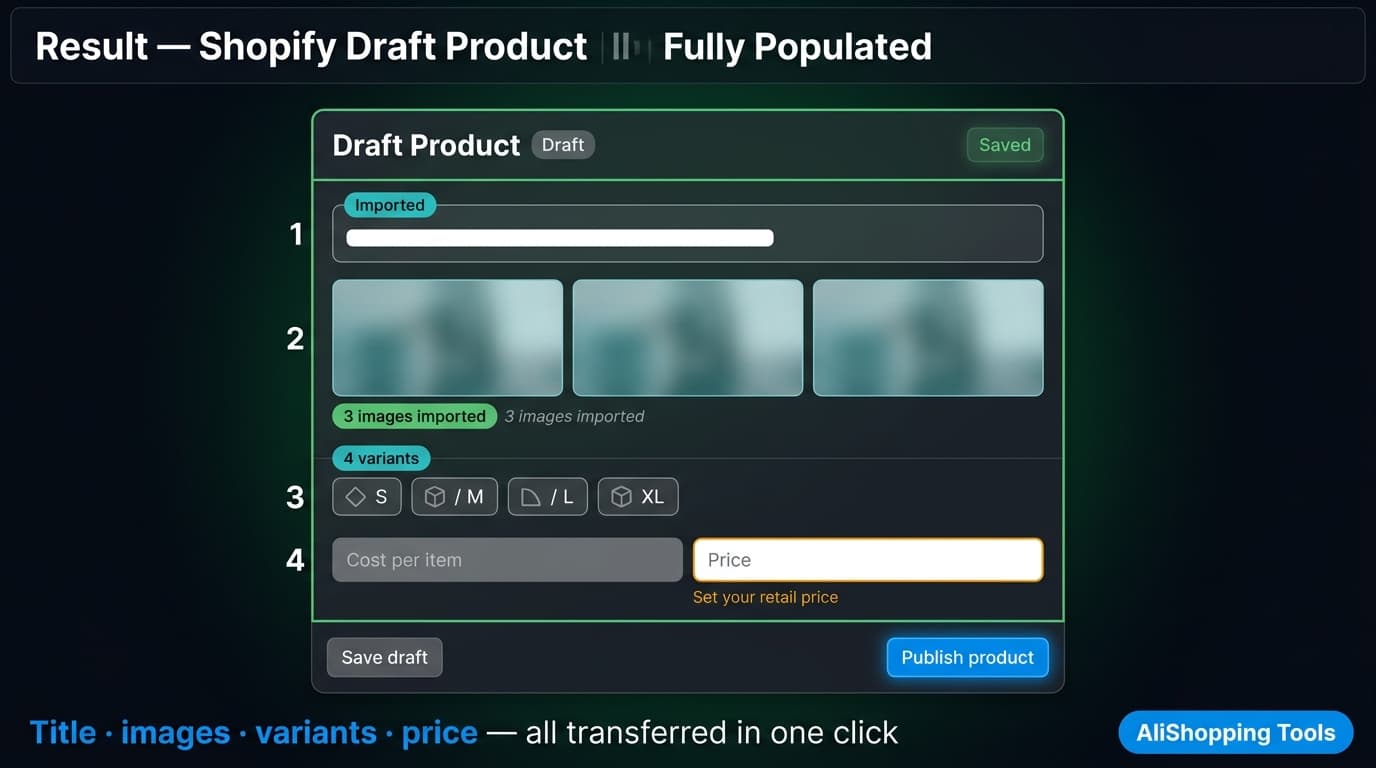
What data gets imported: product title, full product description, all product images, available variants (size, color, etc.), and the supplier pricing. You edit the retail price and margins in Shopify after import.
Why Is Direct Import Faster Than DSers or Manual CSV?
The two most common alternatives to direct import are DSers (a Shopify app that handles AliExpress order routing) and manual CSV upload.
DSers is primarily an order fulfillment tool, not a product import tool. It supports importing products, but requires creating a DSers account, connecting both your AliExpress buyer account and your Shopify store, and navigating a separate product management dashboard outside Shopify. If you already use DSers for order routing, keeping it for fulfillment while using AliShopping Tools for import research is a valid stack.
Manual CSV is the most flexible method but the slowest. You download product data, clean it, reformat it to match Shopify's column schema, and upload. Image URLs must be live and accessible. Any formatting error rejects the entire import. For a single product, this takes 15–30 minutes. For bulk research where you test 20 products per week, that overhead compounds quickly.
AliShopping Tools direct import takes under 60 seconds per product once set up. The extension overlay is already open (it activates automatically on every AliExpress product page), so the workflow is: find product → click Import → select store → confirm. No account switching, no file management, no CSV formatting.
The tradeoff: direct import requires a one-time Shopify store connection. Setup takes about 5 minutes and is covered in the steps below.
Prerequisites
Before you begin, make sure you have:
- Chrome browser (desktop — the extension does not run on mobile browsers)
- AliShopping Tools v2.0.0.23 installed from the Chrome Web Store
- A Shopify store with admin access (any paid Shopify plan — the API connection requires a store that can generate access tokens)
- AliExpress account — not required for import, but needed if you intend to place orders directly through AliExpress
If you have an older version of AliShopping Tools installed, update it to v2.0.0.23 or later. The direct import feature was introduced in v2.0.0.23 and is not available in earlier versions. Chrome usually updates extensions automatically — check chrome://extensions/ and look for the Update button if the Shopify import panel does not appear.
Step 1: Install AliShopping Tools v2.0.0.23
Open the Chrome Web Store and search for "AliShopping Tools", or use the direct link below.
Install AliShopping Tools on the Chrome Web Store →
Click the install button on the Chrome Web Store page. Chrome will request two permissions: storage (saves your settings and caches product data locally) and tabs (used for SPA navigation on AliExpress and opening the welcome page). Accept both. The extension activates automatically — no configuration step is required after install.
Verify the install: Navigate to any AliExpress product page (e.g., aliexpress.com/item/...). The AliShopping Tools panel should appear as a sidebar on the right side of the page within 1–2 seconds of the page loading. If the panel does not appear, check that the extension is enabled at chrome://extensions/.
Step 2: Connect Your Shopify Store
The Shopify connection requires a one-time setup. This step authorizes AliShopping Tools to create draft products in your Shopify store.
- Open the AliShopping Tools panel on any AliExpress page (click the extension icon in the Chrome toolbar if the panel is not visible).
- Navigate to Settings within the panel.
- Under Shopify Integration, click Connect Store.
- Enter your Shopify store URL (format:
your-store-name.myshopify.com). - You will be redirected to a Shopify authorization page. Log in to Shopify if prompted, then click Install app (or Authorize) to grant the connection.
- You will be redirected back to the AliShopping Tools panel with a confirmation that your store is connected.
Multiple stores: If you have more than one Shopify store, repeat this process for each store. Each connected store will appear in the store picker when you initiate an import. See the AliShopping Tools multi-store setup guide for a full walkthrough of managing multiple connected stores.
Step 3: Find a Product on AliExpress
Navigate to AliExpress and find a product you want to import. Use any of these approaches:
- Search directly on AliExpress using keywords
- Use the AI Verdict in AliShopping Tools — the panel on the product page returns one of four calls (Strong Buy / Buy Signal / Hold / Watch / Pass) from four weighted dimensions: product fundamentals 30%, profit 30%, market saturation 20%, risk 20%
- Check price history — the 90-day price chart in the panel helps you confirm whether the current price is a genuine deal or inflated ahead of a sale event
Once you are on a product detail page (the URL format is aliexpress.com/item/[product-id].html), the AliShopping Tools panel will have loaded the product analysis automatically.
Step 4: Click the Import Button
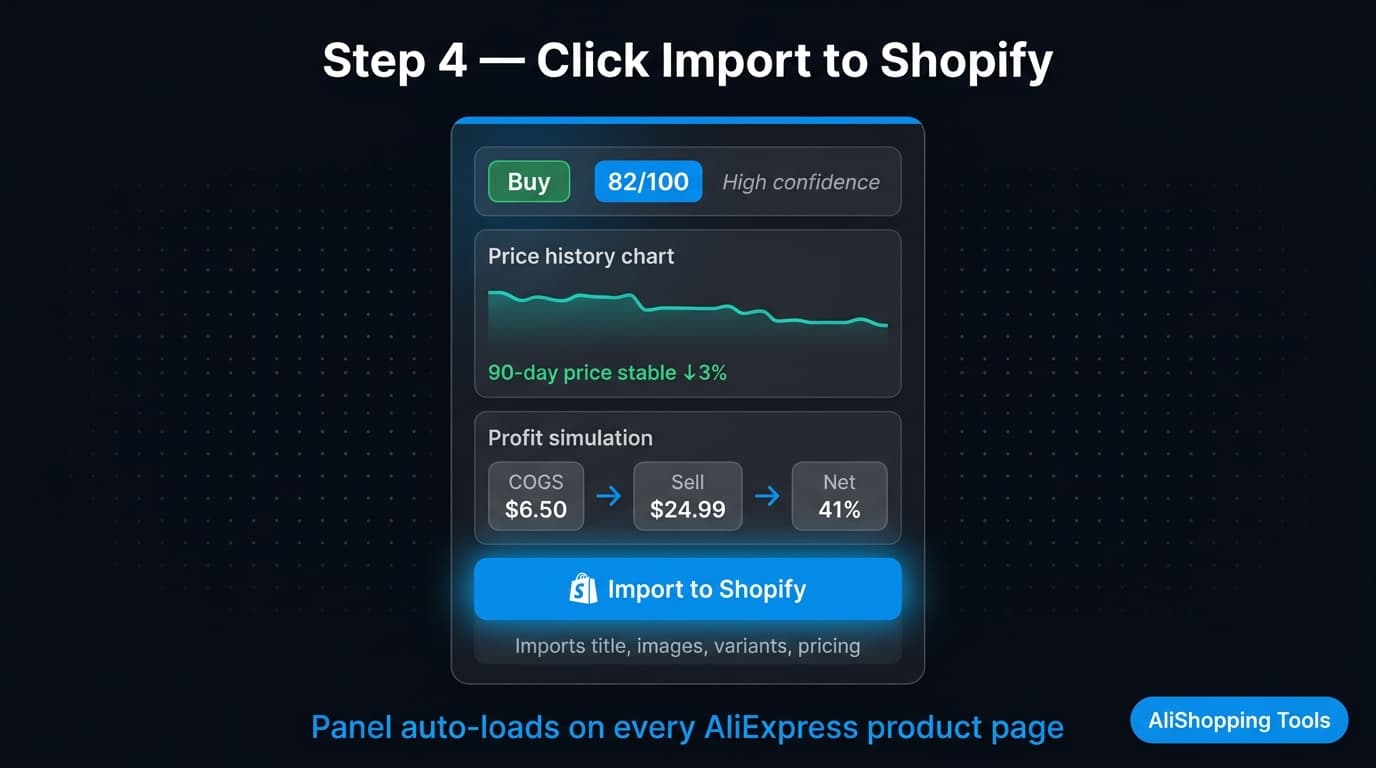
In the AliShopping Tools panel on the product page, locate the Import to Shopify button. This button is injected directly into the overlay — you do not need to navigate away from the product page.
Click Import to Shopify. The extension reads the product data from the current page: title, full description, all available images, variants (size, color, material, etc.), and the supplier pricing. This happens locally within the extension — no data is sent to AliShopping Tools servers.
A loading indicator confirms the extension is preparing the import payload. This typically takes 1–3 seconds depending on the number of product images.
Step 5: Select Destination Store (Multi-Store Picker)
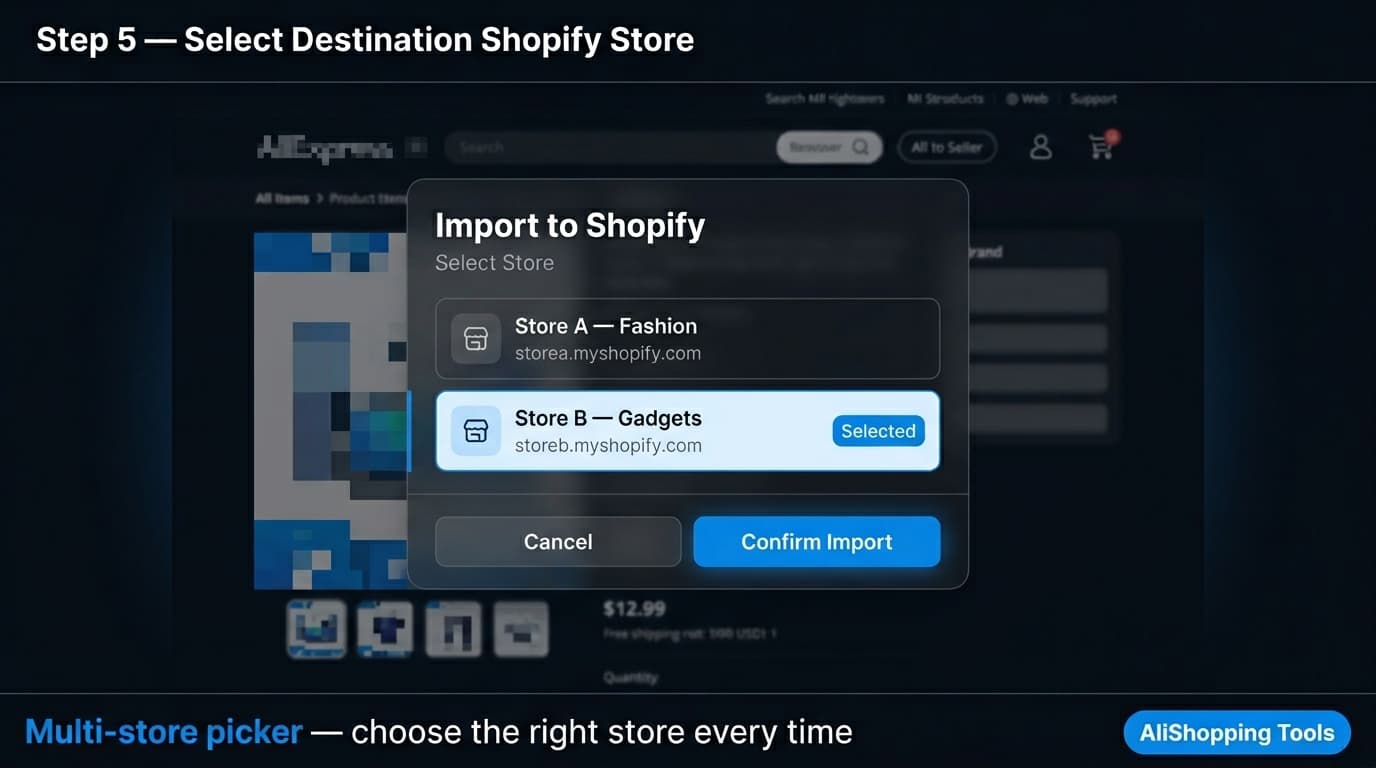
After clicking Import, a store picker dialog appears. This dialog lists all Shopify stores you have connected to AliShopping Tools.
- If you have one store connected, the picker will auto-select it — you can confirm and proceed immediately.
- If you have multiple stores connected, select the destination store from the dropdown list. This is the multi-store picker introduced in AliShopping Tools v2.0.0.23. You can see store names and their
.myshopify.comURLs in the list to avoid importing to the wrong store.
Select your destination store and click Confirm Import.
Step 6: Review and Confirm Import
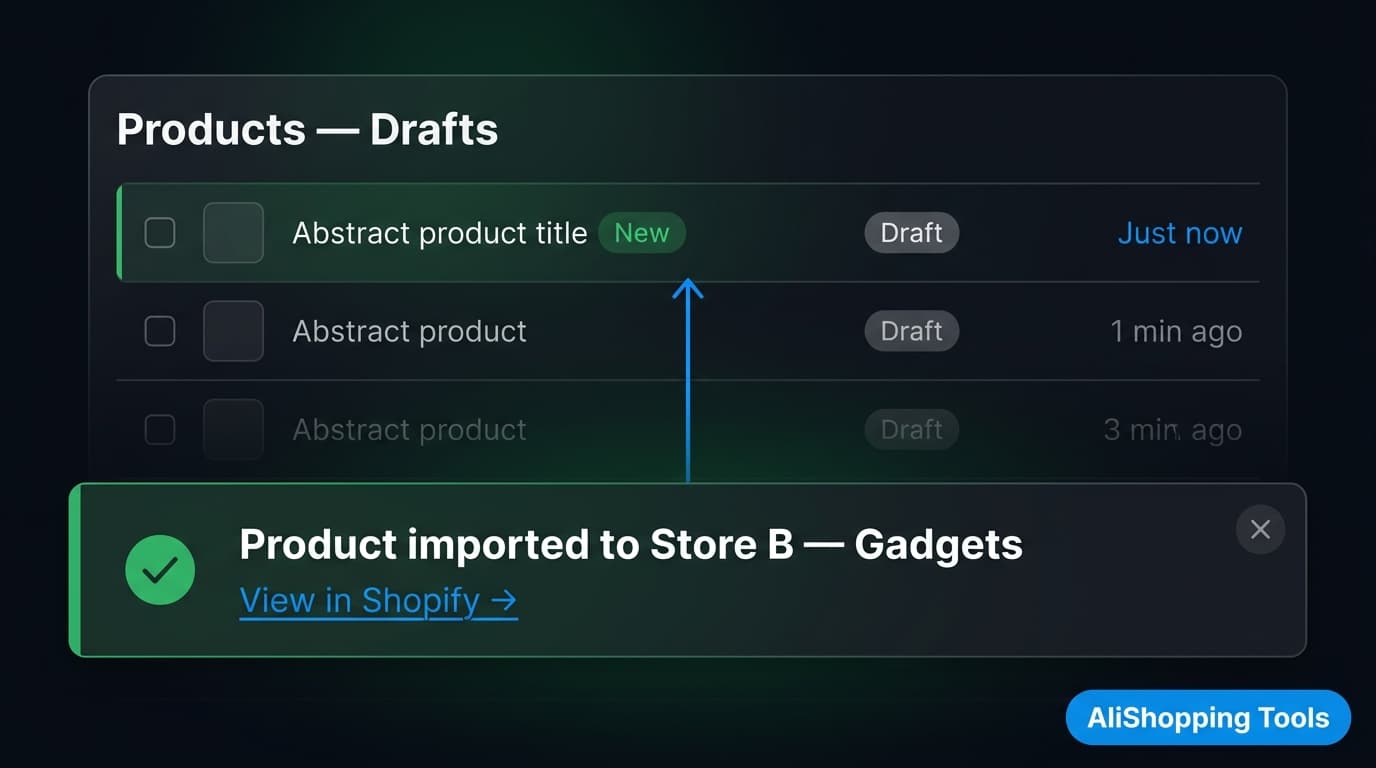
Once you confirm, AliShopping Tools sends the product data to Shopify via the API. A toast notification appears in the bottom corner of your browser confirming the import was successful: "Product imported to [Store Name]."
The product is created as a draft product in Shopify. It does not go live on your store automatically — you need to review and publish it from the Shopify dashboard (covered in Step 7).
What is imported:
- Product title (from AliExpress)
- Full product description (HTML)
- All product images (linked from AliExpress CDN at import time)
- Variants (size, color, material — as listed on AliExpress)
- Supplier pricing (as the "cost per item" reference, not the retail price)
What is not imported automatically: your retail selling price, shipping settings, inventory quantity, and product category within Shopify. You set these in the Shopify dashboard.
Step 7: Edit Product in Shopify Dashboard
Open your Shopify admin (your-store-name.myshopify.com/admin) and navigate to Products. Filter by Draft to find the newly imported product.
Click the product to open the editor. Key fields to update:
Price: The imported price reflects the AliExpress supplier cost. Set your retail selling price based on your margin target. A typical dropshipping margin is 2–4x the supplier cost (excluding shipping) depending on the category and target market.
Description: The AliExpress description is copied as-is. For a higher-converting store, rewrite the description in buyer-benefit language rather than supplier-spec language. Remove any AliExpress-specific language (e.g., supplier-origin shipping claims, "AliExpress guarantee", etc.).
Images: Review imported images. Remove any images that show the AliExpress watermark, supplier branding, or size charts with Chinese characters (these reduce conversion rates for Western markets).
Variants: Confirm variant names match what your customers expect. AliExpress uses size conventions that may not align with your market (e.g., Chinese sizing vs. EU/US sizing).
SEO: Add a custom page title and meta description for the product page. This is especially important if you plan to drive organic traffic to the product.
Once you have reviewed and updated the product, click Save and change the status from Draft to Active to publish it to your store.
Troubleshooting Common Import Issues
Import button does not appear on the product page
Check that AliShopping Tools v2.0.0.23 is installed and enabled (chrome://extensions/). The Import button requires the extension to be active on the AliExpress tab. If you installed the extension while an AliExpress tab was open, reload the tab.
"Store not connected" error when clicking Import
Your Shopify connection may have expired or been revoked. Return to AliShopping Tools Settings → Shopify Integration and reconnect the store. This can happen if you changed your Shopify password or revoked the app in Shopify's app settings.
Product imported but images are missing in Shopify
AliExpress images are linked from the AliExpress CDN at import time. If the product listing was removed or images were rotated by the seller after import, the CDN links break. Always download product images and re-upload them to Shopify's media library for long-term reliability.
Variants imported but sizes are incorrect for my market
AliExpress sellers use manufacturer sizing, which frequently differs from EU/US/UK sizing. Always check the seller's size chart on the product page and add a size guide to your Shopify product to reduce returns.
Toast notification appeared but product is not in Shopify
Check the All filter (not just Draft) in Shopify Products — the product may have been created with Active status in some configurations. Also check the correct store if you have multiple stores connected.
Frequently Asked Questions
How do I import AliExpress products to Shopify? Install AliShopping Tools v2.0.0.23, connect your Shopify store in the extension Settings, open any AliExpress product page, and click the Import to Shopify button in the extension panel. Select your destination store and confirm. The product appears as a draft in your Shopify admin within seconds.
Does AliShopping Tools import all product images from AliExpress? Yes. All images from the AliExpress product listing are imported, including variant-specific images. You can review and remove individual images in the Shopify product editor after import.
Can I import to multiple Shopify stores at once? No — each import targets one store at a time. The multi-store picker lets you choose which store to send the product to, but you need to initiate a separate import for each store if you want the same product in multiple stores.
Is there a limit on how many products I can import? AliShopping Tools does not impose an import limit. Shopify plan limits for product count (if any) still apply. For most Shopify plans, product count limits are high enough that they are not a practical constraint for dropshipping operations.
What happens to the imported product if the AliExpress listing is removed? The Shopify draft product remains in your store — the import creates a copy of the data at the time of import. However, any images linked from the AliExpress CDN will stop loading if the original listing is removed. Re-upload images to Shopify's own media storage to avoid this.
Can I also export AliExpress products as a CSV for Shopify? Yes. AliShopping Tools v2.0.0.23 also supports Shopify-ready CSV export if you prefer to review and edit product data in bulk before importing. Use the CSV export option in the extension panel and upload the file via Shopify's standard product import tool.
AliShopping Tools
See live AliExpress data in your browser.
Seller trust score, 90-day price history, and live promo codes — on every AliExpress product page. No account, free.
Ready to find winning products?
Try AliShopping Tools — 15 free AI tools for product research.
Quick answers
Frequently Asked Questions
1How do I import AliExpress products to Shopify?
Install AliShopping Tools v2.0.0.23 from the Chrome Web Store, connect your Shopify store in the extension Settings, then open any AliExpress product page.
Click the Import to Shopify button in the extension panel, select your destination store, and confirm.
The product — including title, description, images, variants, and pricing — appears as a draft in your Shopify admin within seconds.
2What product data does AliShopping Tools import from AliExpress to Shopify?
AliShopping Tools v2.0.0.23 imports the product title, full HTML description, all product images, available variants (size, color, material), and the AliExpress supplier pricing.
Retail selling price, inventory quantity, and shipping settings are set by you in the Shopify product editor after import.
3Can I import AliExpress products to multiple Shopify stores?
Yes.
AliShopping Tools v2.0.0.23 supports multi-store import via the store picker.
Connect each Shopify store in the extension Settings, then when you click Import on an AliExpress product, select the destination store from the picker.
Each import targets one store per action — run separate imports to add the same product to multiple stores.
4Is AliShopping Tools direct import faster than using DSers or CSV?
Yes.
DSers requires account creation and a separate product management dashboard outside Shopify.
CSV import requires downloading data, formatting it to Shopify's column schema, and uploading manually — typically 15 to 30 minutes per product.
AliShopping Tools direct import completes in under 60 seconds per product once your Shopify store is connected, with no file management or tool switching.
5Why is the Import to Shopify button not appearing on the AliExpress product page?
Check that AliShopping Tools v2.0.0.23 is installed and enabled at chrome://extensions/.
If you installed the extension while an AliExpress tab was already open, reload the tab.
The Import button requires the extension to be active on the AliExpress tab.
Also confirm you have connected at least one Shopify store in the extension Settings.
6Does AliShopping Tools require a paid subscription for Shopify import?
AliShopping Tools does not have a subscription fee.
The Shopify direct import feature in v2.0.0.23 is available without a paid plan or account.
The extension is supported through optional affiliate links on AliExpress product visits.
More from the blog
Shopify Multi-Store AliExpress Dropshipping Guide 2026
Manage multiple Shopify stores sourcing from AliExpress with AliShopping Tools v2.0.0.23 multi-store picker. Connect and import across stores in one click.
AliExpress to Shopify Complete Dropshipping Setup 2026
Set up AliExpress dropshipping with Shopify in 2026: store setup, product research, direct import via AliShopping Tools, pricing, fulfillment, and scaling.
AliExpress vs CJ Dropshipping 2026: Full Comparison
AliExpress vs CJ Dropshipping 2026: catalog size, shipping speed, pricing, and Shopify integration compared. Choose the right sourcing platform for your store.