







How to Analyze AliExpress Reviews Free: Reviews Tab Workflow (2026)
How to Analyze AliExpress Reviews Free: Reviews Tab Workflow (2026)
Quick answer: Open the Reviews tab in the free AliShopping Tools Chrome extension on any AliExpress product page. You get the total review count, the full 1-5 star breakdown in percentages, filters for All / With Photos / Additional, customer photos in a lightbox, and export to CSV, JSON, TXT or XLSX. The tab shows you the evidence — you make the call. For the manual red flags worth knowing, see the full fake AliExpress reviews guide.
A product with 2,000 five-star reviews looks like a no-brainer. Then you dig in and realize a big chunk are one-word "good" posts, barely any buyer posted a photo, and the written feedback keeps mentioning the same sizing problem.
AliExpress review data is genuinely useful — if you actually look at it. The problem is that the product page buries it. You get a headline average, and everything underneath requires scrolling, clicking "next", and squinting at a distribution bar that is not broken out by number.
The Reviews tab in AliShopping Tools fixes the access problem, not the judgement problem. It pulls the review evidence into one panel so you can read it in under a minute. It does not score the product, rank the reviews, or decide anything for you.
Here is how to use it.
What the Reviews Tab Actually Shows
The Reviews tab lives inside the AliShopping Tools Chrome extension panel on the AliExpress product page. It gives you five things, and it is worth being precise about the list, because it is short:
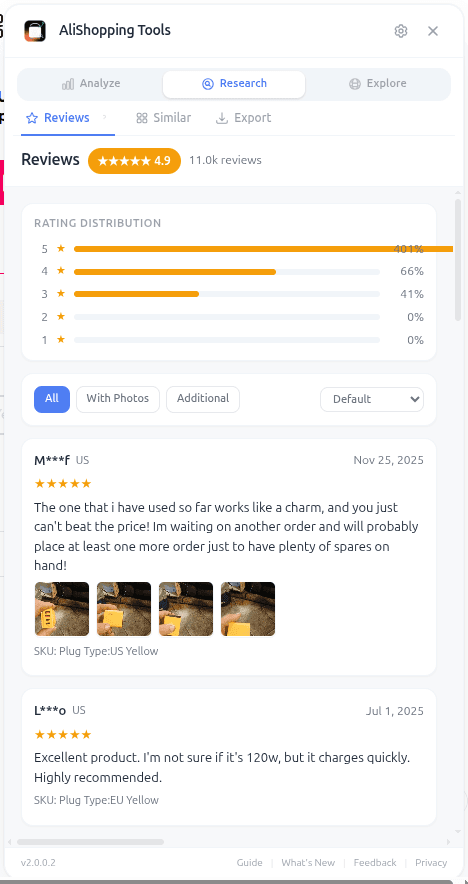
- The total review count — the real number the page is averaging over.
- The 1-5 star distribution, each star level shown as a percentage of the total.
- Three filters — All, With Photos, and Additional.
- Real customer photos, opened full-size in a lightbox.
- Export in four formats — CSV, JSON, TXT and XLSX.
That is the whole feature. There is no authenticity score, no sentiment engine, no fake-review detector. What the tab does is put the underlying evidence one click away, which is the part AliExpress makes tedious.
This is the free-tool companion to our fake AliExpress reviews guide — the guide explains the red flags you should be looking for by hand; this walkthrough shows how to get the raw material in front of you quickly.
How to Access the Reviews Tab
You can open it in three steps.
Step 1 — Install AliShopping Tools. Free on the Chrome Web Store, no account needed. Takes about 15 seconds.
Step 2 — Open the AliExpress product page you want to look at. Paste the URL, click a link, or search on AliExpress and click a product. Any product detail page works.
Step 3 — Click the Reviews tab in the AliShopping Tools panel. You do not need to scroll down to the native AliExpress reviews section or click anything on the page itself.
The panel stays sticky while you browse, so you can jump between Verdict, Trend, Profit, Competition, Risk and Reviews without reloading anything.
UI Elements Breakdown
Review count. The total number of reviews behind the star average. This matters on its own: a 4.9 built on 23 reviews and a 4.9 built on 2,300 are not the same claim, and the product page presents them identically.
Star distribution, 1 to 5. Every star level as a percentage, not a bar you have to eyeball. This is the single most useful number on the tab. A 4.6 average can be a healthy spread with a thin 1-star tail, or it can be a barbell — a pile of 5s and a meaningful block of 1s with nothing in between. The average hides that; the distribution does not. Read the 1- and 2-star share first.
The three filters — All, With Photos, Additional. Switching between them changes which reviews you are looking at. The With Photos filter is the one you will use most: it drops you straight to the reviews where a buyer actually photographed the item, which is the feedback hardest to fake and most useful for checking whether the product matches the listing images.
Check this seller before you buy.
Seller trust score and risk-flag scan on every AliExpress product page. No account, free.
Customer photos. Buyer photos open full-size in a lightbox, so you can compare what arrived against the seller's studio shots without leaving the page. Colour, finish, size against a hand, packaging quality — this is where listings and reality most often part ways.
Export — CSV, JSON, TXT, XLSX. One click pulls the review data out of the browser. Use CSV or XLSX if you want to sort and filter in a spreadsheet, JSON if you are feeding it into something else, TXT for a quick read. This is the escape hatch for when a product matters enough to warrant more than a minute of attention.
Real-World Workflow: Vetting a Silicone Kitchen Tool
Imagine you are considering a silicone spatula set with 4.6 stars and 1,800 reviews. On paper it looks like a winner. Here is how the Reviews tab reshapes the decision.
Open the product page and click the Reviews tab. First look at the count — 1,800 is a real sample, not a handful. Then read the star split rather than the average. If the 1- and 2-star rows together are a small slice and 3-star is thin, the 4.6 is doing what a 4.6 should. If instead there is a visible block at 1 star, that block is telling you something specific and you should go find out what.
Now switch to With Photos. This is the fastest quality check available to you. Open a handful of buyer photos in the lightbox and compare them against the listing images. Does the silicone look like the product shot, or noticeably cheaper? Is the size what the listing implies?
Finally, if the product is a serious candidate, hit Export and pull the reviews into a spreadsheet. Sort by rating, read the 1- and 2-star reviews as a block, and see whether the same complaint keeps appearing. If "melts in the dishwasher" shows up over and over, that is a real product characteristic — and it does not stop being true when you sell the item from your own store. Either address it in your listing, ask the supplier about a dishwasher-safe variant, or pick a different product.
None of this is the tab making a judgement. It is the tab getting the evidence in front of you in a minute instead of twenty, and you drawing the conclusion.
Pair it with the Verdict and Risk checks and you rarely get surprised post-purchase.
Common Mistakes to Avoid
Trusting the star average alone. The average is one number compressing a whole distribution, and very different distributions produce the same average. Read the 1-5 split instead — it takes two seconds longer and tells you far more.
Ignoring the review count. A high rating on a small number of reviews is a weak signal, not a strong one. Check what the average is averaging over before you weight it.
Skipping the photo filter. Buyer photos are the highest-value review content on AliExpress and the most annoying to reach manually. The With Photos filter is one click. Use it on every product you are seriously considering.
Reading only the 5-star reviews. They are the least informative. Export the data, sort by rating, and read the low end — that is where the specific, actionable problems live.
Expecting the tab to decide for you. It shows you count, distribution, filters, photos and an export. Judging whether a review pattern looks organic is still your job, and it should be — you know your niche and your customers better than any panel does.
FAQ
Is the Reviews tab really free? Yes. AliShopping Tools is free to install and use. The Reviews tab — like every other tab — costs nothing, works without an account, and has no trial limits.
Does it work on every AliExpress product page? Yes, any AliExpress product detail page. Open the page, click the extension, switch to the Reviews tab.
Does it detect fake reviews? No. It does not analyse review text, score authenticity, or flag anything as suspicious. It shows you the count, the star distribution, the filters, the photos and an export — the evidence you would use to judge for yourself. If you want the manual checks, the fake AliExpress reviews guide walks through them.
What about reviews in other languages? AliExpress reviews come in many languages and the tab shows them as they are — it does not translate or interpret them. Buyer photos and the star distribution are language-independent, which is part of why they are worth leaning on.
What can I do with the export? CSV and XLSX open directly in Excel, Google Sheets or Numbers, so you can sort by star rating, filter, and read the negative reviews as a group. JSON is there if you want to process the data yourself. TXT is a plain dump for a quick scan.
How does this compare to the Verdict tab? Verdict gives you an overall winning score. Reviews does not score anything — it hands you the review evidence and leaves the interpretation to you. Use Verdict for a quick go/no-go read, use Reviews when you want to see what buyers actually received.
Stop Guessing What Customers Actually Think
Reviews are the closest thing you get to talking to real customers before you sell a product. Ignoring them is expensive. Reaching them on the AliExpress page is slow. Getting the count, the full star split, the buyer photos and an export in one panel takes about a minute — and then the judgement is yours to make with the evidence in hand.
Install AliShopping Tools — Free on Chrome Web Store
Already installed? Open any AliExpress product and click the Reviews tab. The next time a 4.9-star product looks perfect, you will be able to check what that 4.9 is actually made of.
AliShopping Tools
Check this seller before you buy.
Seller trust score and risk-flag scan on every AliExpress product page. No account, free.
Product Tracker Free Beta
Track any AliExpress product’s real price, orders, stock & rating for 180 days. Data doesn’t lie. But discounts can.
Before you buy
Is this deal real? Check the price history before you buy.
Prices often spike just before a “sale.” See 180-day price history and fake discount detection — free, no account needed.
Verify on AliShopping Deals →Ready to find winning products?
Try AliShopping Tools — 15 free AI tools for product research.
Quick answers
Frequently Asked Questions
1Is the Reviews tab really free?
Yes. AliShopping Tools is free to install and use. The Reviews tab — like every other tab — costs nothing, works without an account, and has no trial limits.
2Does it work on every AliExpress product page?
Yes, any AliExpress product detail page. Open the page, click the extension, switch to the Reviews tab.
3Does the Reviews tab detect fake reviews?
No.
It does not analyse review text, score authenticity, or flag anything as suspicious.
What it gives you is the evidence: the total review count, the full 1-5 star distribution as percentages, filters for All / With Photos / Additional, buyer photos in a lightbox, and an export.
Judging whether a review pattern looks organic is your call, not the tool's.
4What about reviews in other languages?
AliExpress reviews come in many languages and the tab shows them as they are — it does not translate or interpret them.
The star distribution and the buyer photos are language-independent, which is part of why they are the most useful things on the tab when the written feedback is in a language you do not read.
5How does this compare to the Verdict tab?
Verdict gives you an overall winning score.
Reviews does not score anything — it hands you the review evidence (count, star split, photo filter, photos, export) and leaves the interpretation to you.
Use Verdict for a quick go/no-go read, use Reviews when you want to see what buyers actually received.
6How quickly does the Reviews tab load for a product with hundreds of reviews?
It loads in a few seconds for a typical listing.
Very large review counts can take a little longer on the first pass.
There is no heavy processing involved — the tab is reading and presenting the review data, not running an analysis over it.
7Can I use the free AliShopping Tools Reviews tab on my phone or tablet?
The Reviews tab is a Chrome extension feature, so it runs on the desktop version of Chrome — it does not work inside the AliExpress mobile app or on mobile browsers.
If you need to check a product from a phone, open the desktop site via Chrome's "Request desktop site" option, though it is much easier to read on a full-size screen.
8Can I export the review data from the Reviews tab?
Yes.
The Reviews tab exports in four formats: CSV, JSON, TXT and XLSX.
CSV and XLSX open directly in Excel, Google Sheets or Numbers, which is the easiest way to sort reviews by star rating and read the 1- and 2-star feedback as a block.
JSON is there if you want to process the data yourself.
9How do I look at reviews that include photos?
Use the With Photos filter, one of the tab's three filters (All, With Photos, Additional).
It narrows the list to reviews where a buyer attached an image, and the photos open full-size in a lightbox so you can compare what actually arrived against the seller's listing shots.
It is the fastest quality check on the tab.
Related Articles
- How to Spot Fake AliExpress Reviews in 30 Seconds (2026 Guide)misc
- How to Spot Fake AliExpress Reviews in 30 Seconds: 4 Red Flagsguides
- Winning Products September 2026: 10 Fall-Transition Categories That Convertproducts
- AI Product Scoring for Dropshipping: How It Actually Works in 2026dropshipping
- المنتجات الرابحة في أغسطس 2026: 12 فئة في ذروة العودة إلى المدارسproducts
- Produits Gagnants Août 2026 : 12 Catégories au Pic de la Rentrée Scolaireproducts
Related Tools
More from the blog
How to Spot Fake AliExpress Reviews in 30 Seconds (2026 Guide)
AliExpress fake reviews follow 7 patterns — burst posting, identical wording, missing photos, manipulated ratings. Spot incentivized and misleading reviews before you buy.
Winning Products September 2026: 10 Fall-Transition Categories That Convert
10 dropshipping categories for September 2026 — back-to-school tail, fall wardrobe and home refresh, early Halloween prep, and cozy-season essentials — plus how to vet any candidate with AStools before you spend.
AI Product Scoring for Dropshipping: How It Actually Works in 2026
AI product scoring replaces gut-feel product research with data-driven composite metrics. Learn how tools like Winning Score and Verdict work, what data feeds them, where they fall short, and how to use scores without over-trusting them.